



Gaming PCs are built for performance—high-end CPUs, powerful GPUs, fast RAM, and advanced cooling setups. Yet Gaming PCs Overheating is one of the most common problems gamers face. Excess heat can throttle performance, reduce hardware lifespan, and even cause sudden shutdowns.
Table of Contents
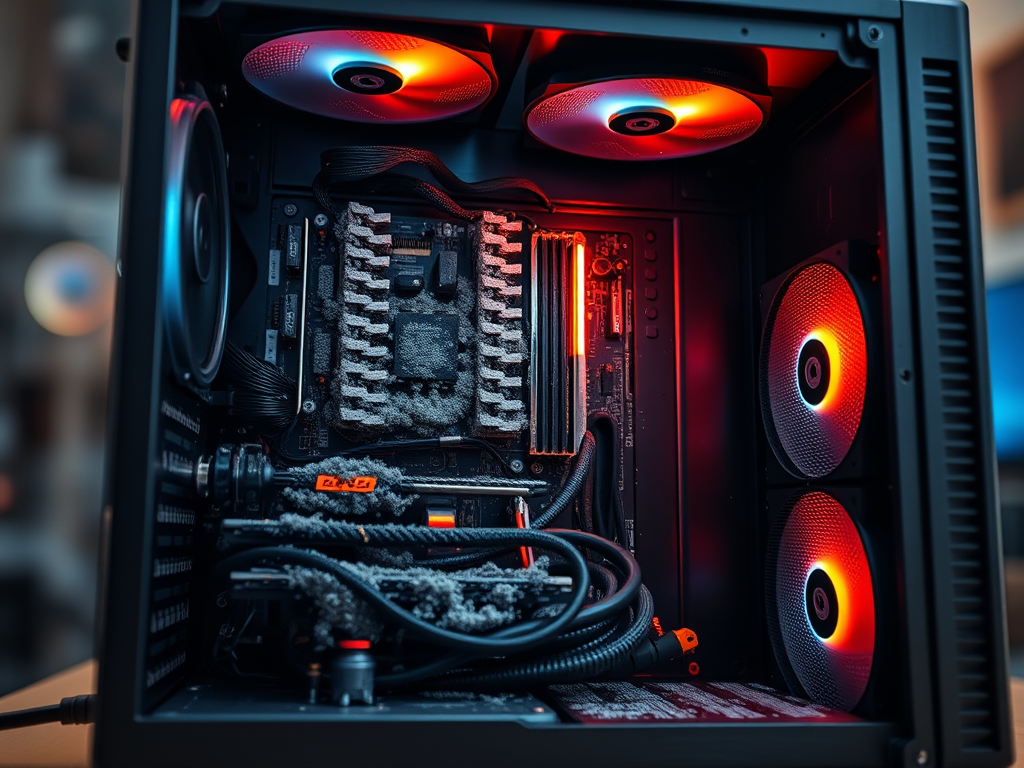
In this blog, we’ll break down why gaming PCs overheat and provide practical, easy-to-follow solutions to keep your system cool and stable.
Why Do Gaming PCs Overheat?
1. High CPU & GPU Load During Gaming
Modern games push hardware to its limits. AAA titles, ray tracing, high resolutions (1440p/4K), and high FPS targets put continuous stress on the CPU and GPU, generating a lot of heat.
Symptoms:
- Sudden FPS drops (thermal throttling)
- Loud fan noise
- System lag during intense gameplay
2. Poor Airflow Inside the Case
If hot air cannot escape the cabinet, it gets trapped inside. Common airflow issues include:
- Too few intake or exhaust fans
- Incorrect fan orientation
- Small or low-quality PC cabinets
3. Dust Build-Up
Dust acts as insulation. Over time, dust accumulates on:
- CPU coolers
- GPU heatsinks
- Case fans
- Power supply vents
This blocks airflow and reduces cooling efficiency.
4. Old or Improper Thermal Paste
Thermal paste helps transfer heat from the CPU/GPU to the cooler. Over time, it dries out and loses effectiveness.
Result: Even a good cooler can fail to manage temperatures.
5. Overclocking Without Proper Cooling
Overclocking boosts performance but also increases voltage and heat output. Without advanced cooling, temperatures can spike quickly.
6. High Ambient Room Temperature
Your PC can never be cooler than the room it’s in. Gaming in hot environments (especially in Indian summers 🌡️) significantly impacts cooling.
7. Faulty or Low-Quality Cooling Components
- Stock CPU coolers
- Cheap case fans
- Aging liquid coolers (AIO pump issues)
These often struggle with modern gaming workloads.
Solutions: How to Fix Gaming PC Overheating
1. Improve Case Airflow
- Use at least 2 intake fans (front) and 1–2 exhaust fans (rear/top)
- Ensure proper airflow direction
- Choose airflow-focused cabinets with mesh fronts
Pro Tip: Positive airflow (more intake than exhaust) helps reduce dust.
2. Clean Your PC Regularly
- Clean every 2–3 months
- Use compressed air or a soft brush
- Clean fans, filters, GPU, and CPU heatsinks
3. Replace Thermal Paste
- Reapply thermal paste every 1.5–2 years
- Use high-quality paste (Arctic MX-4, Noctua NT-H1, etc.)
4. Upgrade Your CPU Cooler
- Replace stock coolers with:
- Tower air coolers (budget-friendly)
- AIO liquid coolers (240mm/360mm for high-end builds)
5. Optimize Fan Curves
- Use BIOS or software (MSI Afterburner, FanControl)
- Increase fan speed gradually as temperatures rise
- Balance noise vs cooling
6. Undervolt CPU & GPU
Undervolting reduces heat without sacrificing performance.
- GPU undervolting via MSI Afterburner
- CPU undervolting via BIOS or Intel XTU / Ryzen Master
7. Avoid Extreme Overclocking
If temperatures exceed:
- CPU: 85–90°C
- GPU: 80–85°C
Dial back the overclock or improve cooling first.
8. Control Room Temperature
- Use proper ventilation
- Use air conditioning or cooling fans
- Avoid placing the PC near walls or enclosed spaces
9. Monitor Temperatures
Use tools like:
- HWMonitor
- Core Temp
- MSI Afterburner
Constant monitoring helps prevent long-term damage.
Ideal Gaming PC Temperatures
| Component | Safe Range |
|---|---|
| CPU | 60–80°C (Load) |
| GPU | 60–85°C (Load) |
| Idle (CPU/GPU) | 30–45°C |
Final Thoughts
Overheating is not just a performance issue—it’s a hardware health risk. With proper airflow, regular maintenance, and smart tuning, you can significantly reduce temperatures and enjoy smooth, long gaming sessions.
If you’re building or upgrading a gaming PC, always prioritize cooling over aesthetics. RGB looks great—but stable FPS matters more.
Want more gaming PC guides, hardware tips, and performance optimization blogs? Stay connected with the GameTheBox community. 🎮🔥


Leave a Reply